Where to find them
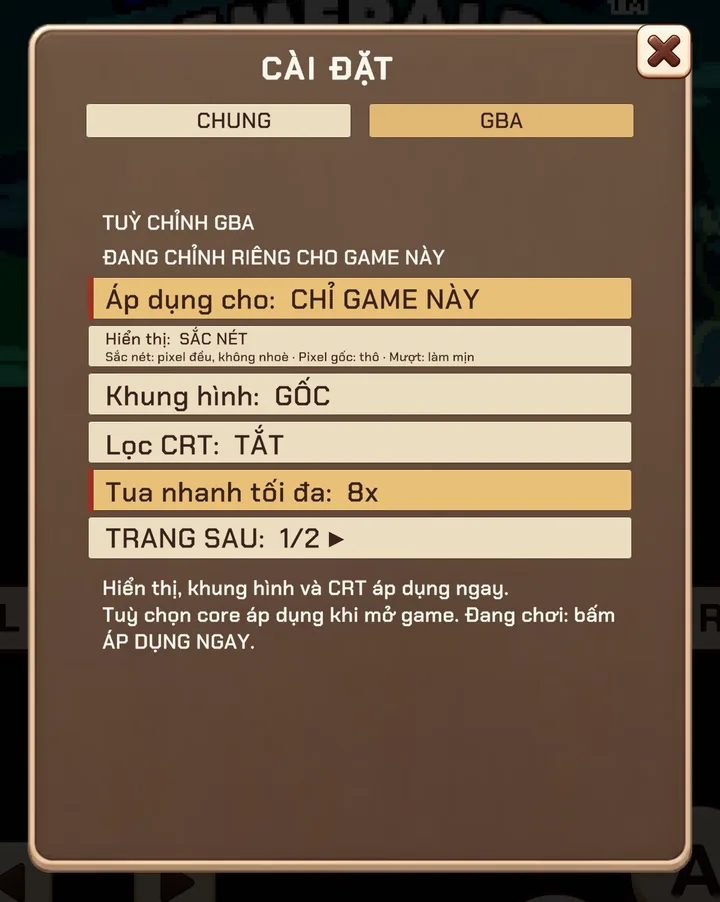
Open the in-game menu ☰. The first tab, GENERAL, holds things that apply everywhere: save, load, reset, rotate, controls, cheats, volume and auto-save. Next to it is a tab for the system you are playing — GBA, PSP, ARCADE and so on.
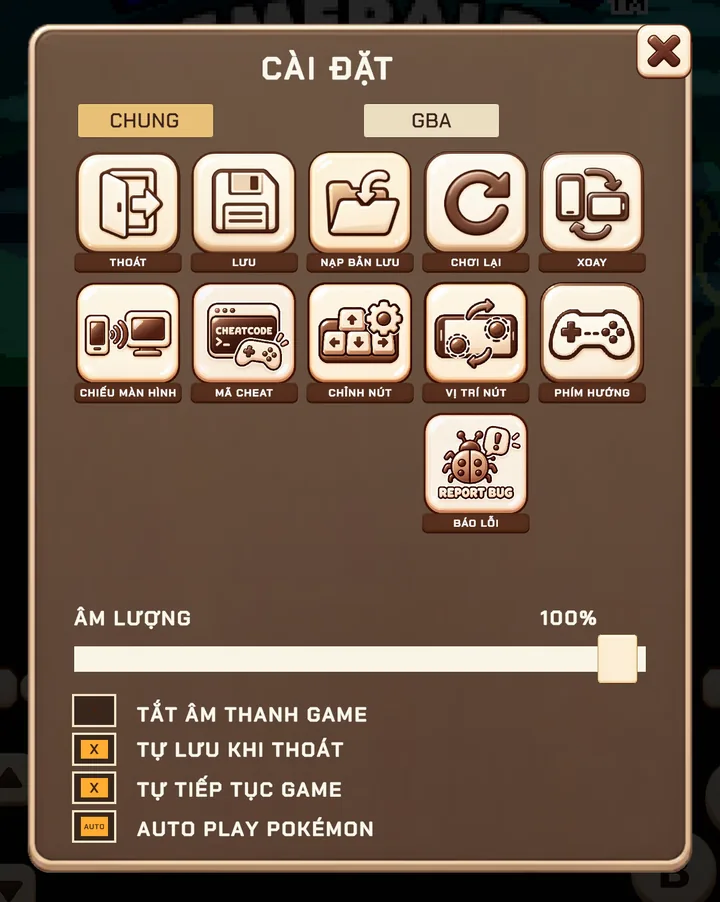
All games or just this one
The first line of every system tab is APPLY TO:
- All games — the change becomes the default for every game on that system.
- This game only — the change is remembered for the current game and overrides the system default.
Switch back to All games any time to see the system defaults again; your per-game choices are kept.
What you can change
Options are split into pages (NEXT PAGE 1/2 ▸). Display, frame and CRT changes apply instantly. Deeper core options are applied when the game restarts — or immediately with Apply now.
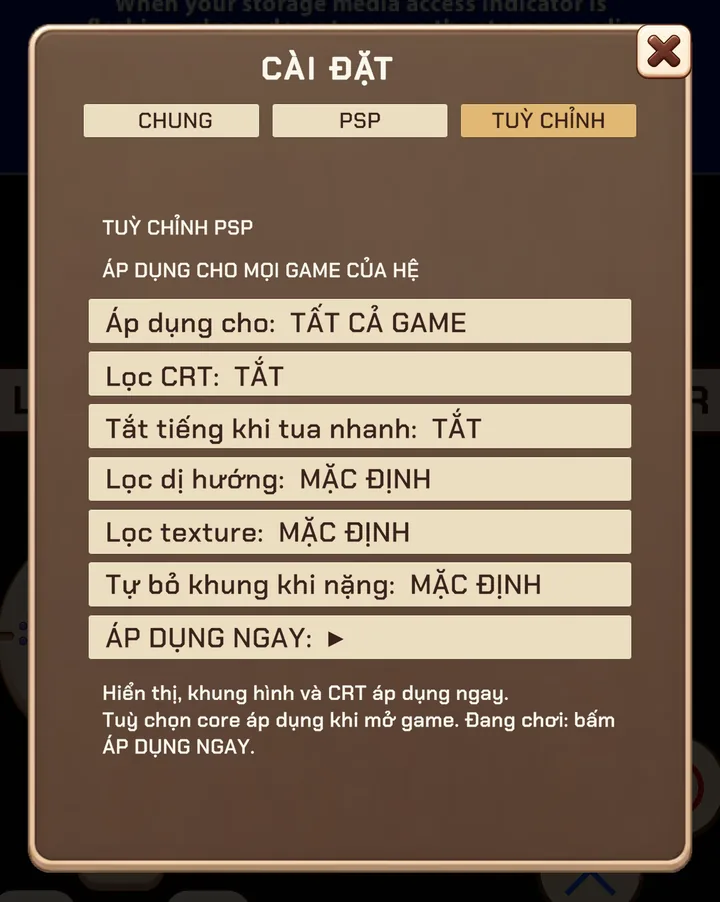
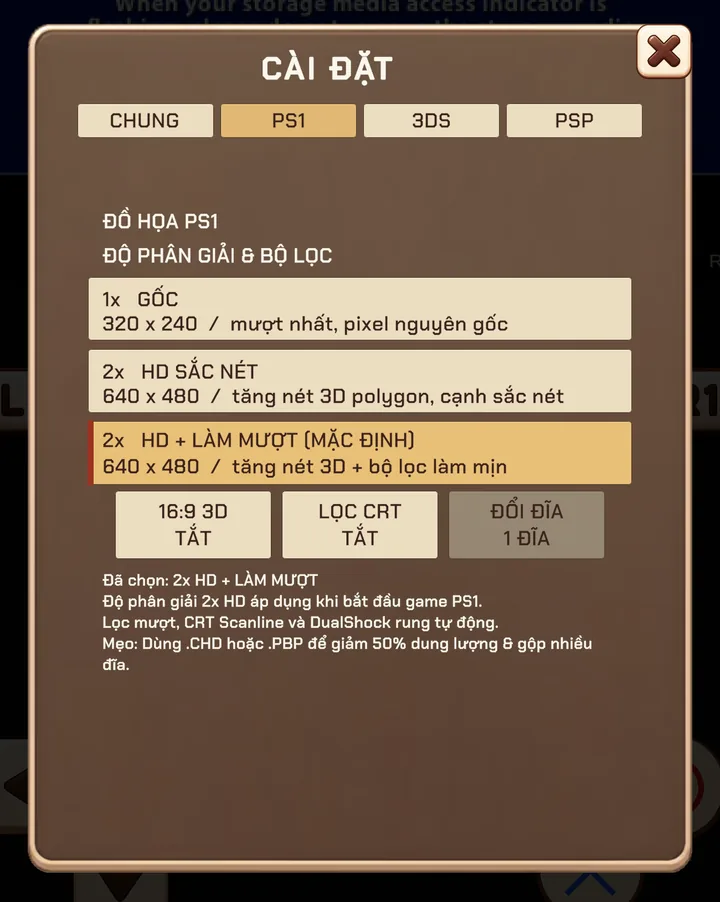
Arcade DIP switches
Arcade boards used tiny DIP switches to set difficulty, lives, coin settings and region. The ARCADE tab exposes them for Neo Geo and MAME games, per game.
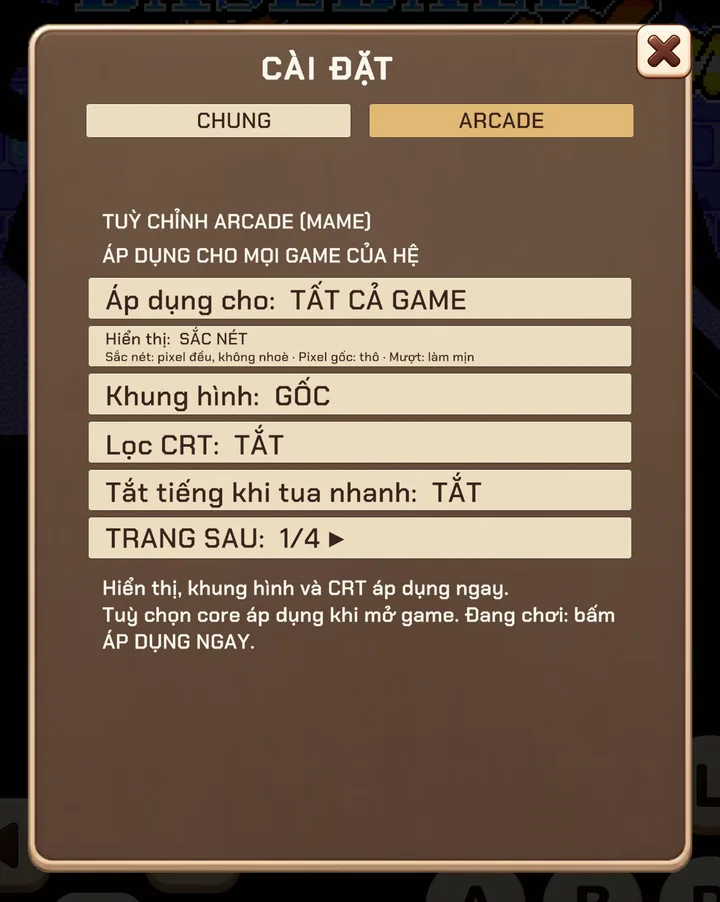
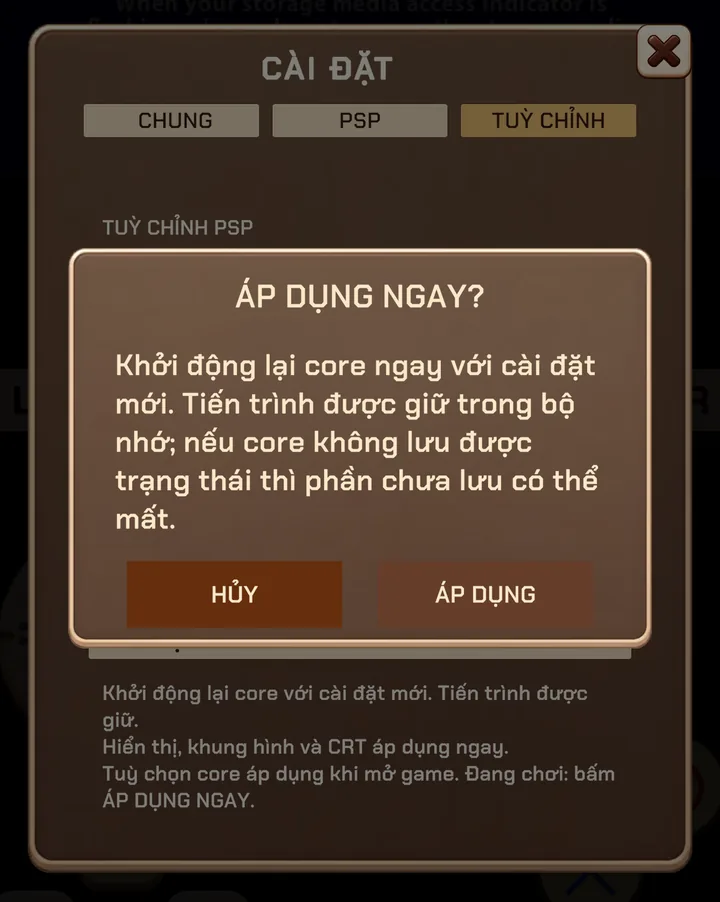
Apply now
Some options (resolution, renderer, DIP switches) need the emulator core to restart. Instead of quitting the game, tap APPLY NOW:
- Retrofun keeps your progress in memory.
- The core restarts with the new settings.
- Your game resumes where you were.
Smart defaults for your device
On first launch Retrofun checks your device's memory, CPU and GPU and places it in a Low, Mid or High tier. The tier picks sensible defaults — PSP and 3DS resolution, PS1 enhanced mode — so demanding games run smoothly without fiddling. You can always change them by hand.
Screenshots were taken on a Xiaomi Pad 5 with the Vietnamese interface; button positions are the same in every language.